Independent extender & router guidesHelping you find your connection.
The guide library

A device’s router rule stops working behind an extender: inspect virtual MAC addresses

Explore the guide library · Extender connection checks

Some proxy-mode extenders present a translated client identifier to the router, which affects address-based rules.
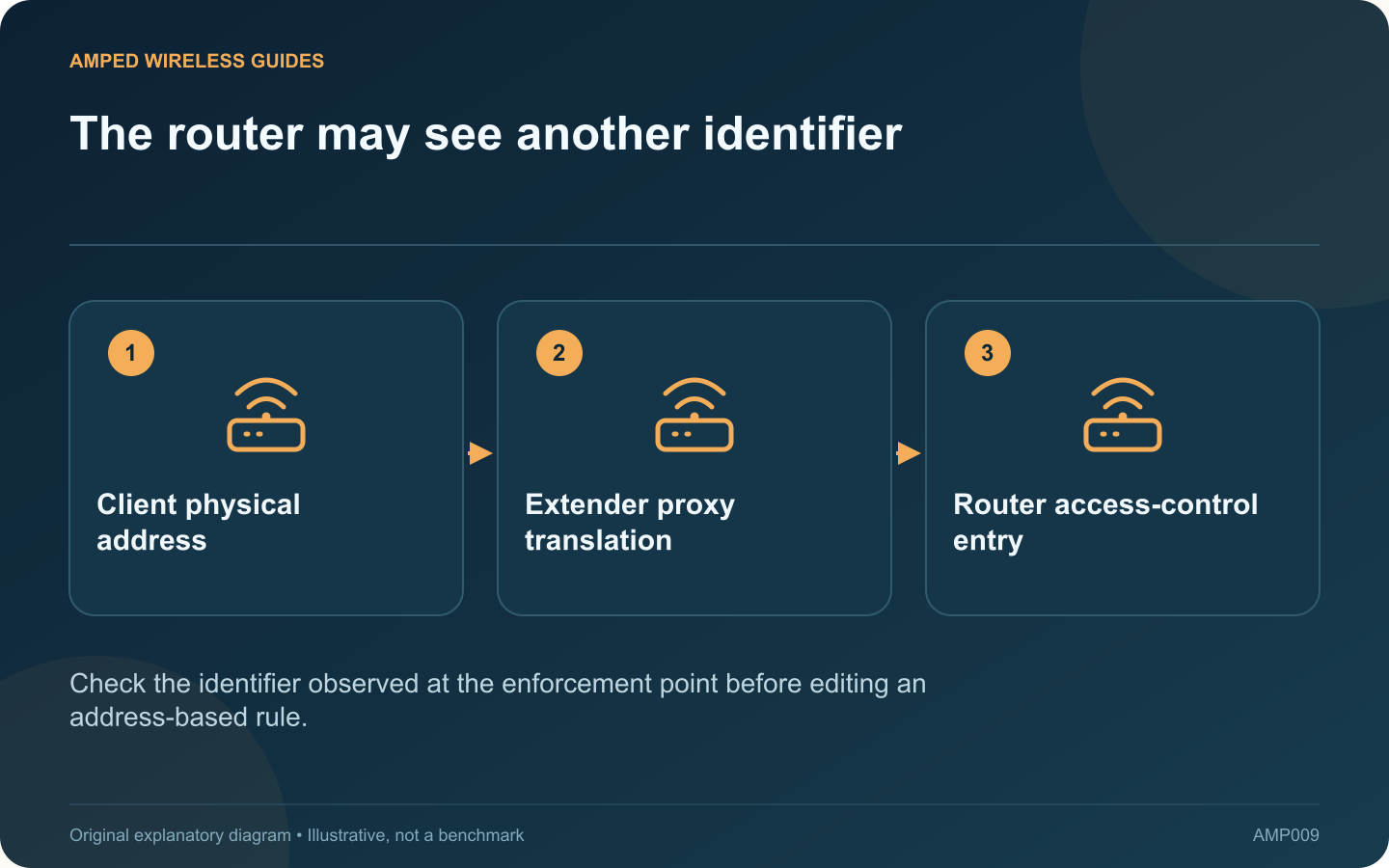
The router may see another identifier: Client physical address; Extender proxy translation; Router access-control entry
Check the identifier observed at the enforcement point before editing an address-based rule.

A router rule tied to a device’s MAC address may behave differently after that device joins through an extender. Some extenders use a proxy arrangement that presents a translated address upstream. The router may therefore be applying the rule to a different identifier than you expect.

Verify that the model uses this behavior

TP-Link documents virtual client MAC addresses for particular proxy-mode extender arrangements. This is not a universal description of every extender, access point or mesh system. Read the instructions for the exact model and operating mode.

Compare the relevant records

Identify the device in the extender’s client view and compare it with the router’s current connected-device list. Where the supported interface exposes physical and virtual addresses, use that mapping. Do not invent a translated address from a pattern found for unrelated hardware.

Keep the rule’s purpose intact

If the rule enforces a household schedule or organization policy, correct the identity mapping through the network owner. Do not disable access control globally to make one client work. Make the smallest authorized change needed for the intended device.

Test both connection paths

  1. Check the device while connected directly to the router.
  2. Check it while connected through the extender.
  3. Record the upstream identity in each case.
  4. Verify that the intended rule applies in both situations.

A private or randomized address on the client can introduce another identity change. Keep that separate from the extender’s own translation when documenting the result.

Recheck after configuration changes

Firmware, mode changes or moving to a different extender may affect the observed arrangement. Preserve a small record of the working mapping without posting household device identifiers publicly.

Address-based rules should also be understood within their limits; they are not a substitute for strong wireless authentication. The immediate task is to make the existing authorized policy follow the correct device through the actual topology, rather than assuming the address printed on one label is always what the router sees.

Sources and editorial notes

Sources checked 8–9 October 2026. Independent guidance and original illustrations; product comparisons use published specifications rather than hands-on benchmarks. Check the exact model, revision and regional documentation before changing settings.

Related guides

300 FAQs across our guide libraries

Quick answers

100 practical questions from Amped Wireless Guides.

Browse all 100 FAQs
Why can an extender change the device identity seen by router rules?

A router rule tied to a device's MAC address may behave differently after that device joins through an extender. Some extenders use a proxy arrangement that presents a translated address upstream. The router may therefore be applying the rule to a different identifier than you expect. TP-Link documents virtual client MAC addresses for particular proxy-mode extender arrangements. This is not a universal description of every extender, access point or mesh system. Read the instructions for the exact model and operating mode.

Read the full guide and sources
Why can an extender show full Wi-Fi bars but have no internet?

Standing beside an extender can produce full Wi-Fi bars even when web pages will not load. Those bars mainly describe the nearby wireless connection. The extender still needs a working path to the router, and the router needs internet access. Use a known device connected directly to the main router and test an ordinary website. Confirm the phone has not switched to cellular data. If the direct connection also fails, investigate the router or provider before changing extender placement.

Read the full guide and sources
Why can an extender fail to see the router’s 5 GHz network?

An extender finding the router's 2.4 GHz network but missing its 5 GHz network has a narrower problem than a completely failed setup. Confirm the router's 5 GHz radio and the extender's supported channels before resetting the device. Use another compatible client near the router to check its 5 GHz network. If that client cannot see it either, inspect the router first. When both bands share one name, use the router's status information to verify which band the test client actually joined.

Read the full guide and sources
Does plugging a television into an extender create wired backhaul?

Connecting a television or console to an extender's Ethernet port can be useful, especially when the device's own wireless adapter is weak. However, if the extender connects to the router over Wi-Fi, the stream still depends on that wireless backhaul. Write the sequence as television, cable, extender, wireless link, router and internet. TP-Link describes this Ethernet bridge function on supported extenders. The cable changes the client-facing segment; it does not replace the radio connection between the extender and router.

Read the full guide and sources
Independent. Practical. Clear.

Amped Wireless Guides is an independent information website. We are not affiliated with or endorsed by Amped Wireless. Product names belong to their respective owners.