Explore the guide library · Extender connection checks
The signal shown on your phone describes its nearby connection, not every link back to the internet.
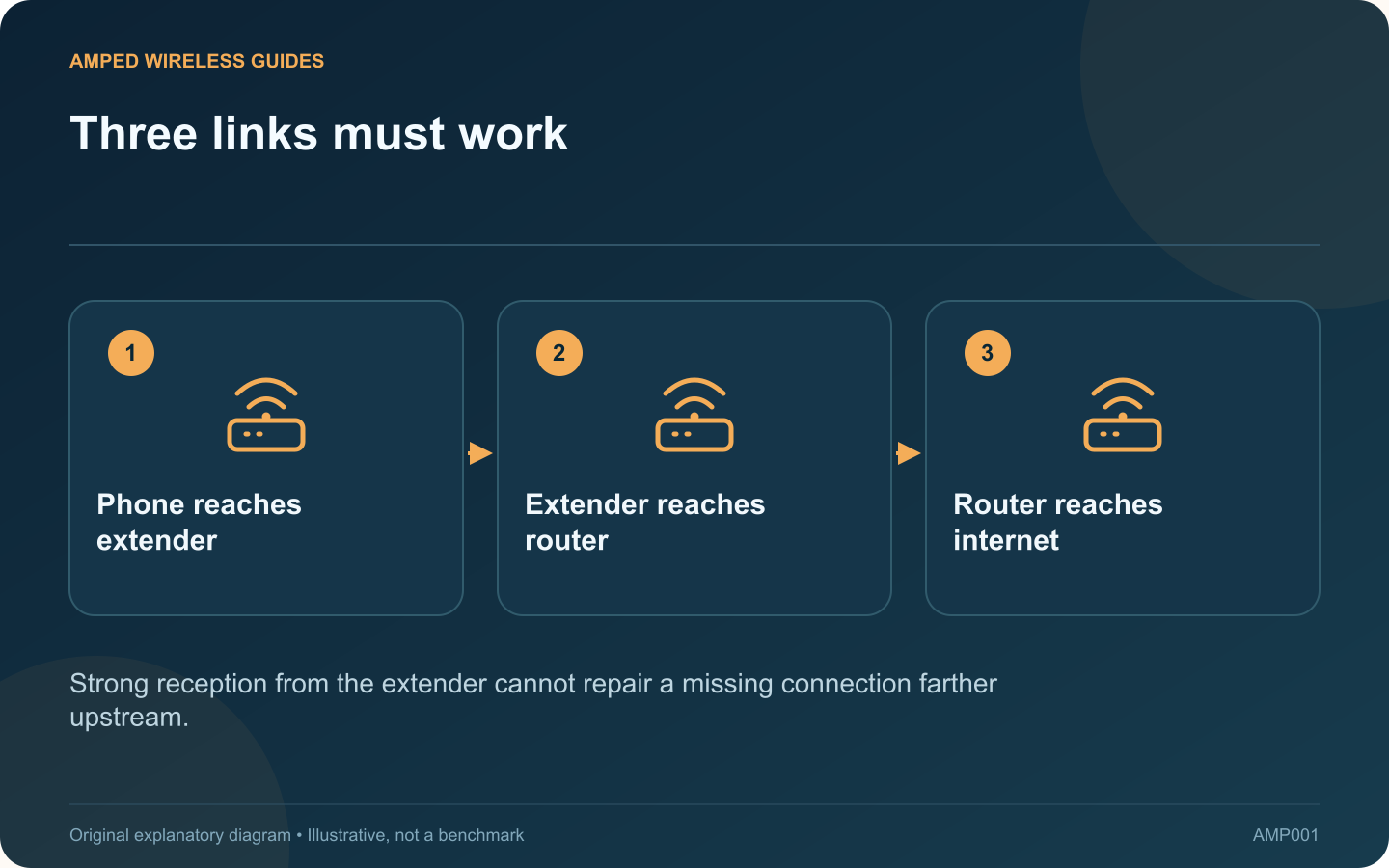
Standing beside an extender can produce full Wi-Fi bars even when web pages will not load. Those bars mainly describe the nearby wireless connection. The extender still needs a working path to the router, and the router needs internet access.
Compare the router directly
Use a known device connected directly to the main router and test an ordinary website. Confirm the phone has not switched to cellular data. If the direct connection also fails, investigate the router or provider before changing extender placement.
Read the extender’s status
Open its supported management interface and inspect the host-network connection. TP-Link’s troubleshooting documentation distinguishes the router-to-extender link from internet status. Use the manual for your model because LED names and colors are not universal.
Separate association from addressing
A client can join Wi-Fi but fail to receive the network settings needed for useful access. Note whether the device reports an address and gateway. Do not add a second DHCP server or copy a random static address as a first response.
Try a controlled location test
- Keep the existing configuration recorded.
- Move the extender nearer to the router temporarily.
- Wait for its normal startup and host connection.
- Test the same client and website.
If that restores access while the direct router connection was always healthy, the extender’s upstream wireless path deserves attention. If it does not, review configuration and supported firmware rather than assuming distance is the only explanation.
Finish at the intended location
Once the cause is addressed, return to the room that needs coverage and repeat the actual task. Check both the extender’s host-link status and the client experience.
A successful test beside the extender is useful only when the entire path works. Keep the three stages separate in your notes so future failures can be narrowed down without resetting every device or repeatedly buying stronger-looking wireless hardware.
Sources and editorial notes
Sources checked 8–9 October 2026. Independent guidance and original illustrations; product comparisons use published specifications rather than hands-on benchmarks. Check the exact model, revision and regional documentation before changing settings.
- TP-Link: extender connection status and internet access
- TP-Link: separating router and extender disconnections