Independent extender & router guidesHelping you find your connection.
The guide library

An older device fails after enabling Deco Fast Roaming: run a compatibility check

Explore the guide library · Roaming and client behavior

Test the specific roaming feature separately from the network’s encryption and other wireless settings.
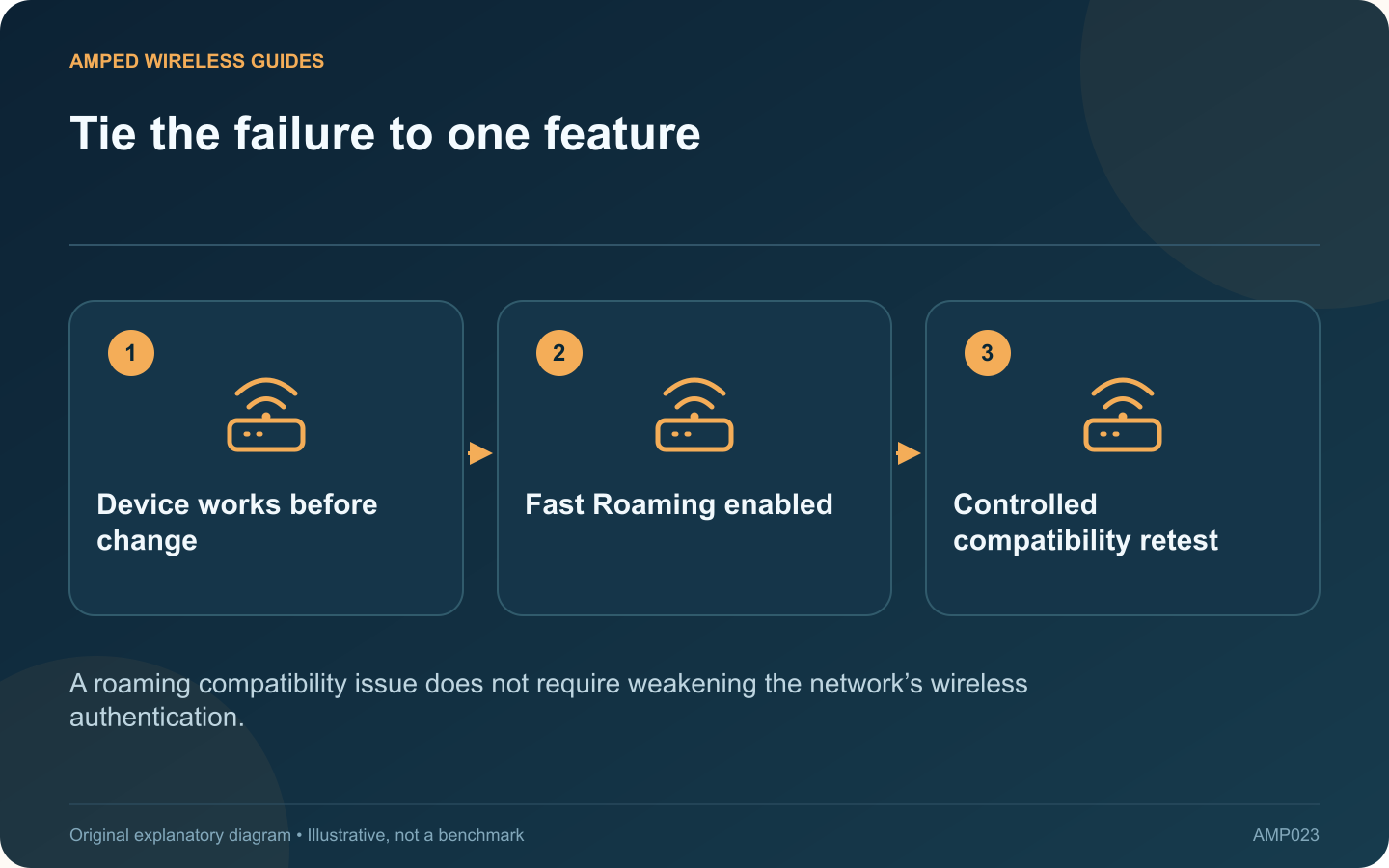
Tie the failure to one feature: Device works before change; Fast Roaming enabled; Controlled compatibility retest
A roaming compatibility issue does not require weakening the network’s wireless authentication.

If an older printer, camera or smart device stops connecting immediately after Fast Roaming is enabled, a compatibility test is reasonable. TP-Link documents that some clients cannot interpret the relevant 802.11r information and may fail to connect.

Confirm the timing

Record whether the failure began with the Fast Roaming change or after several unrelated settings were modified. Check another ordinary client on the same network. A whole-network outage requires a broader investigation than one older device rejecting association.

Check supported software

Review firmware availability for both the mesh system and affected device. Use the exact model’s vendor guidance. Do not assume that a device marketed as Wi-Fi compatible supports every roaming feature offered by a newer access point.

Test one feature at a time

On a network you administer, record the current setting and use the vendor’s documented Fast Roaming compatibility test during a suitable maintenance period. Keep encryption, password and network name unchanged so the comparison isolates roaming behavior.

Evaluate the tradeoff

  • Does the older device reconnect reliably?
  • Do mobile phones still move between rooms acceptably?
  • Does the original problem return when the setting is restored?
  • Is a supported device update available?

One successful reconnection is a clue. Repeat the normal use pattern before deciding the issue is resolved.

Choose a supported long-term arrangement

Depending on the equipment, that may involve a compatible client update, a documented separate network arrangement or retaining a different roaming configuration. Verify any isolation requirements rather than assuming that a separately named network automatically enforces them.

Do not downgrade to obsolete wireless encryption to fix a roaming-protocol issue. They are different parts of the connection. Keep a note of the affected device and the observed compatibility result so a later firmware update can be evaluated without repeating broad, unrelated changes throughout the household network.

Sources and editorial notes

Sources checked 8–9 October 2026. Independent guidance and original illustrations; product comparisons use published specifications rather than hands-on benchmarks. Check the exact model, revision and regional documentation before changing settings.

Related guides

300 FAQs across our guide libraries

Quick answers

100 practical questions from Amped Wireless Guides.

Browse all 100 FAQs
Why can an older device struggle after Deco Fast Roaming is enabled?

If an older printer, camera or smart device stops connecting immediately after Fast Roaming is enabled, a compatibility test is reasonable. TP-Link documents that some clients cannot interpret the relevant 802.11r information and may fail to connect. Record whether the failure began with the Fast Roaming change or after several unrelated settings were modified. Check another ordinary client on the same network. A whole-network outage requires a broader investigation than one older device rejecting association.

Read the full guide and sources
Why does a phone stay connected to a distant router?

A phone may remain connected to the main router after you walk beside an extender using the same Wi-Fi name. The client decides when to seek another access point, and matching network names alone do not create a coordinated mesh system. Use the router or extender's client list where available to identify which device is serving the phone. Update or refresh the view before drawing a conclusion. A remembered list entry can remain visible after the client has moved.

Read the full guide and sources
Does choosing a Deco satellite’s source pin every client to it?

Supported Deco models can offer connection preferences for a satellite and for an individual client. These controls affect different links. Choosing the wrong one can leave the original problem unchanged. If a satellite repeatedly connects through a distant node, investigate its upstream source. If a television connects to an inconvenient Deco while the satellites themselves are healthy, investigate the client's serving-node preference.

Read the full guide and sources
What should I compare on TL-SG105-M2 and NETGEAR MS105?

The TL-SG105-M2 and NETGEAR MS105 are candidates for a small unmanaged 2.5 Gigabit network segment. Their shared role means the comparison should focus on practical fit rather than inventing a performance winner from brand preference. A workstation and storage server with suitable interfaces may benefit from faster local transfers. An older Gigabit device remains limited by its own connection. Check the negotiated rate at each endpoint after installation.

Read the full guide and sources
Independent. Practical. Clear.

Amped Wireless Guides is an independent information website. We are not affiliated with or endorsed by Amped Wireless. Product names belong to their respective owners.