Independent extender & router guidesHelping you find your connection.
The guide library

Restart or factory reset an extender? Preserve the evidence before choosing

Explore the guide library · Maintenance and recovery

A restart and a reset have different effects; use the smallest supported action that addresses the diagnosed problem.
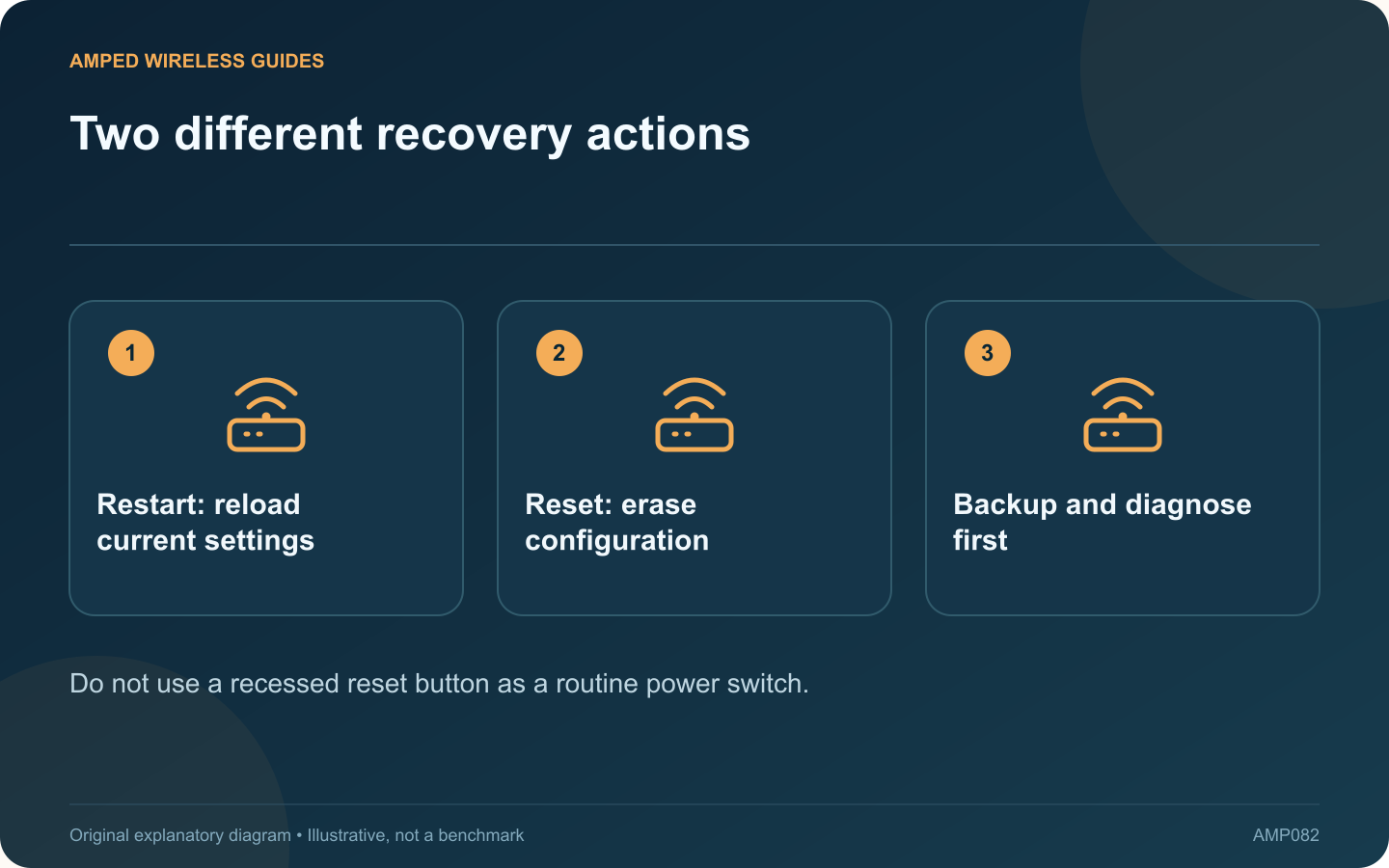
Two different recovery actions: Restart: reload current settings; Reset: erase configuration; Backup and diagnose first
Do not use a recessed reset button as a routine power switch.

Restarting an extender and restoring its factory defaults are different operations. A restart normally reloads the current configuration, while a factory reset removes settings and requires setup again. Choosing the wrong action can turn a temporary fault into an unnecessary installation task.

Capture the failing state

Note the lights, connected network, affected devices and whether the main router still works. Read available status information and logs before restarting, since some evidence may disappear afterward.

Try a supported restart when appropriate

Use the management interface or procedure specified by the manufacturer. Allow the device to complete its normal startup. Avoid repeatedly interrupting power while it is booting or updating firmware.

Reserve reset for a defined reason

A reset may be part of the documented recovery process, preparation for reuse or correction of an unusable configuration. Read the exact model’s instructions because button timing and behavior differ. A generic instruction to hold a button for a guessed duration is unreliable.

Prepare before erasing settings

  • Confirm access to the upstream network credentials.
  • Record supported operating mode and placement.
  • Save a compatible backup where the product supports it.
  • Arrange a maintenance window for affected users.

Retest the original symptom

After recovery, reproduce the workload that failed. If the issue returns, compare its timing and scope rather than making factory resets a recurring habit. Interference, weak backhaul or an unsupported security configuration will not necessarily disappear because settings were erased.

Keep backups private because they can contain sensitive configuration. If the extender is part of a coordinated mesh, follow that system’s removal and re-addition process rather than assuming a standalone reset is sufficient.

The best recovery action has a purpose and an acceptance check. Preserving configuration and diagnostic evidence makes it easier to solve the cause instead of repeatedly rebuilding the same unstable arrangement.

Sources and editorial notes

Sources checked 8–9 October 2026. Independent guidance and original illustrations; product comparisons use published specifications rather than hands-on benchmarks. Check the exact model, revision and regional documentation before changing settings.

Related guides

300 FAQs across our guide libraries

Quick answers

100 practical questions from Amped Wireless Guides.

Browse all 100 FAQs
Should I restart or factory-reset a failing extender?

Restarting an extender and restoring its factory defaults are different operations. A restart normally reloads the current configuration, while a factory reset removes settings and requires setup again. Choosing the wrong action can turn a temporary fault into an unnecessary installation task. Note the lights, connected network, affected devices and whether the main router still works. Read available status information and logs before restarting, since some evidence may disappear afterward.

Read the full guide and sources
What belongs in a useful network hardware inventory?

A useful home-network inventory does more than list “router” and “extender.” Exact model and hardware information can determine which firmware is appropriate, which replacement is compatible and where a fault should be investigated. For each device, note the manufacturer, model, hardware revision and a private descriptive label. Record the installed firmware and official support page. TP-Link's extender maintenance guidance illustrates why revision information matters when selecting an update.

Read the full guide and sources
Should unsupported extenders be replaced even if they still work?

An extender may continue forwarding traffic long after its product family stops receiving updates. That does not by itself prove a current compromise, but support status should be part of the decision about keeping it in service. Find the exact model and revision on the official support and lifecycle pages. ASUS, for example, publishes an end-of-life networking list. Other manufacturers use different terminology, so distinguish a sales discontinuation from a stated end of software support.

Read the full guide and sources
Why must extender firmware match hardware revision and region?

An extender family can contain several hardware revisions that require different firmware. Before a manual update, match the full model, revision and regional support page. A file for a similarly named product is not an acceptable substitute. Read the product label and current management status. Record the hardware version and installed firmware. Avoid publishing photographs that expose wireless passwords, device identifiers or account information while asking for help.

Read the full guide and sources
Independent. Practical. Clear.

Amped Wireless Guides is an independent information website. We are not affiliated with or endorsed by Amped Wireless. Product names belong to their respective owners.